Build and run your first MQL5 Expert Advisor on a demo account
Three key takeaways
- This exercise is successful when the EA compiles, initializes, and leaves understandable logs—not when it makes money.
- Attach the EA while platform-wide Algo Trading is disabled, inspect every input, and enable execution only on a demo account you have identified clearly.
- The example is intentionally limited and is not suitable for live trading; read the limitation notes before you run it.
An Expert Advisor (EA) turns MQL5 source code into a program that MetaTrader 5 can execute repeatedly. That power deserves a controlled first exercise. We will use a transparent, deliberately simple EA to learn the full path:
source file → compile → Navigator → demo chart → permissions → Experts/Journal logs
If MetaTrader, MetaEditor, or Strategy Tester is still unfamiliar, begin with the MetaTrader 5 and MQL5 starting guide. This tutorial assumes desktop MT5 is installed and a demo account is connected. It does not require a particular broker, instrument, or funded account.
What this exercise verifies—and what it does not
| Scope | This exercise verifies | This exercise does not verify |
|---|---|---|
| Technical flow | The source compiles, the EA attaches, and logs are understandable | A strategy's profitability or long-term reliability |
| Execution setup | Permissions, inputs, and symbol-rule errors can be inspected on demo | Live fills, slippage, fees, or broker conditions |
| Evidence | Terminal build, demo server and account mode, symbol, timeframe, EA version, and inputs | The same outcome in every environment |
| Privacy | Screenshots and logs can be shared without credentials or account identifiers | A broker's complete privacy practices |
Treat the example as a controlled functional check. Do not publish account numbers, passwords, access tokens, or personally identifying screenshots while recording your result.
Set up a controlled demo environment
Before opening the source file, verify the environment. Broker servers can use different symbol names, contract sizes, minimum volumes, stop distances, spreads, sessions, and account modes.
| Check | Where to look | What to record |
|---|---|---|
| Account is demo | Navigator and account details | Server, account currency, leverage, netting or hedging mode |
| Terminal build | Help → About | Full MT5 build and architecture |
| Symbol rules | Market Watch → right-click symbol → Specification | Exact symbol, digits, point size, minimum/step volume, stop level, sessions |
| Platform permission | Top toolbar | Keep Algo Trading disabled during setup |
| Existing exposure | Toolbox → Trade | Use a clean demo symbol with no manual or EA-managed position |
A demo account removes direct financial loss from the exercise, but it does not reproduce live liquidity, slippage, latency, or every rejection rule. Demo success is a functional check, not evidence of expected returns.
What the example EA does
The learning rule evaluates one completed candle whenever a new bar starts:
| Previous completed candle | Requested action |
|---|---|
| Close is above open | Close a selected sell position, then request a buy if no position is selected |
| Close is below open | Close a selected buy position, then request a sell if no position is selected |
| Close equals open | Do nothing |
It also requests a fixed volume, stop-loss distance, and take-profit distance. This is not a strategy recommendation. A candle's direction by itself is not an investment thesis, and no performance claim is attached to this example.
Download the complete MQL5 source
Use the checked-in source rather than copying fragments from screenshots:
Download the complete Permact First Candle EA source
The source is reproduced below so you can review exactly what will run.
//+------------------------------------------------------------------+
//|                                      Permact_First_Candle_EA.mq5 |
//|                                      Copyright 2026, Permact     |
//|                                             https://permact.com  |
//+------------------------------------------------------------------+
#property copyright "Copyright 2026, Permact"
#property link      "https://permact.com"
#property version   "1.10"

#include <Trade/Trade.mqh>

CTrade trade;

input double Lots                = 0.01;
input int    StopLossPoints      = 300;
input int    TakeProfitPoints    = 600;
input int    MinStopBufferPoints = 50;
input ulong  MagicNumber         = 20260708;

datetime lastBarTime = 0;

int OnInit()
  {
   trade.SetExpertMagicNumber(MagicNumber);
   trade.SetAsyncMode(false);
   if (!trade.SetTypeFillingBySymbol(_Symbol))
     {
      Print("Initialization failed: unable to select the filling policy for ", _Symbol);
      return(INIT_FAILED);
     }
   Print("Permact first candle EA started");
   return(INIT_SUCCEEDED);
  }

void OnDeinit(const int reason)
  {
   Print("Permact first candle EA stopped. Reason: ", reason);
  }

void OnTick()
  {
   datetime currentBarTime = iTime(_Symbol, _Period, 0);
   if (currentBarTime == 0 || currentBarTime == lastBarTime)
      return;

   lastBarTime = currentBarTime;

   if (Bars(_Symbol, _Period) < 10)
      return;

   double previousOpen  = iOpen(_Symbol, _Period, 1);
   double previousClose = iClose(_Symbol, _Period, 1);

   if (previousOpen == 0 || previousClose == 0)
      return;

   if (previousClose > previousOpen)
     {
      CloseSellPosition();
      if (!PositionSelect(_Symbol))
         OpenBuy();
     }

   if (previousClose < previousOpen)
     {
      CloseBuyPosition();
      if (!PositionSelect(_Symbol))
         OpenSell();
     }
  }

void OnTrade()
  {
  }

void OpenBuy()
  {
   double bid = SymbolInfoDouble(_Symbol, SYMBOL_BID);
   double ask = SymbolInfoDouble(_Symbol, SYMBOL_ASK);
   if (bid <= 0 || ask <= 0)
      return;

   int slPoints = EffectiveInitialStopPoints(StopLossPoints);
   int tpPoints = EffectiveInitialStopPoints(TakeProfitPoints);

   double sl = 0.0;
   double tp = 0.0;

   if (slPoints > 0)
      sl = AlignPriceDown(bid - slPoints * _Point);

   if (tpPoints > 0)
      tp = AlignPriceUp(ask + tpPoints * _Point);

   bool requestBuilt = trade.Buy(Lots, _Symbol, 0.0, sl, tp, "Permact candle buy");
   TradeRequestCompleted(requestBuilt, "Buy");
  }

void OpenSell()
  {
   double ask = SymbolInfoDouble(_Symbol, SYMBOL_ASK);
   double bid = SymbolInfoDouble(_Symbol, SYMBOL_BID);
   if (bid <= 0 || ask <= 0)
      return;

   int slPoints = EffectiveInitialStopPoints(StopLossPoints);
   int tpPoints = EffectiveInitialStopPoints(TakeProfitPoints);

   double sl = 0.0;
   double tp = 0.0;

   if (slPoints > 0)
      sl = AlignPriceUp(ask + slPoints * _Point);

   if (tpPoints > 0)
      tp = AlignPriceDown(bid - tpPoints * _Point);

   bool requestBuilt = trade.Sell(Lots, _Symbol, 0.0, sl, tp, "Permact candle sell");
   TradeRequestCompleted(requestBuilt, "Sell");
  }

int EffectiveInitialStopPoints(const int requestedPoints)
  {
   if (requestedPoints <= 0)
      return 0;

   int stopLevel = (int)SymbolInfoInteger(_Symbol, SYMBOL_TRADE_STOPS_LEVEL);
   int bufferPoints = MinStopBufferPoints > 0 ? MinStopBufferPoints : 0;
   int minimumPoints = stopLevel + bufferPoints;

   if (requestedPoints < minimumPoints)
      return minimumPoints;

   return requestedPoints;
  }

double AlignPriceDown(const double price)
  {
   double tickSize = SymbolInfoDouble(_Symbol, SYMBOL_TRADE_TICK_SIZE);
   if (tickSize <= 0.0)
      tickSize = _Point;

   return NormalizeDouble(MathFloor(price / tickSize) * tickSize, _Digits);
  }

double AlignPriceUp(const double price)
  {
   double tickSize = SymbolInfoDouble(_Symbol, SYMBOL_TRADE_TICK_SIZE);
   if (tickSize <= 0.0)
      tickSize = _Point;

   return NormalizeDouble(MathCeil(price / tickSize) * tickSize, _Digits);
  }

bool TradeRequestCompleted(const bool requestBuilt, const string action)
  {
   uint retcode = trade.ResultRetcode();
   ulong deal = trade.ResultDeal();
   ulong order = trade.ResultOrder();

   if (requestBuilt && retcode == TRADE_RETCODE_DONE && deal > 0)
      return true;

   if (retcode == TRADE_RETCODE_DONE_PARTIAL)
     {
      Print(action, " partially filled and requires reconciliation. Retcode: ", retcode, " ",
            trade.ResultRetcodeDescription(), ", deal: ", deal, ", order: ", order);
      return false;
     }

   if (retcode == TRADE_RETCODE_PLACED)
     {
      Print(action, " was placed but is not final; reconciliation is required. Retcode: ", retcode, " ",
            trade.ResultRetcodeDescription(), ", deal: ", deal, ", order: ", order);
      return false;
     }

   if (requestBuilt && retcode == TRADE_RETCODE_DONE && deal == 0)
     {
      Print(action, " returned DONE without a deal ticket; reconciliation is required. Order: ", order);
      return false;
     }

   Print(action, " failed. Retcode: ", retcode, " ", trade.ResultRetcodeDescription(),
         ", deal: ", deal, ", order: ", order);
   return false;
  }

void CloseBuyPosition()
  {
   if (!PositionSelect(_Symbol))
      return;

   long currentType = PositionGetInteger(POSITION_TYPE);
   long currentMagic = PositionGetInteger(POSITION_MAGIC);

   if (currentType != POSITION_TYPE_BUY)
      return;

   if (currentMagic != (long)MagicNumber)
     {
      Print("Skip close: buy position belongs to another strategy. Magic: ", currentMagic);
      return;
     }

   ulong ticket = (ulong)PositionGetInteger(POSITION_TICKET);
   bool requestBuilt = trade.PositionClose(ticket);
   if (TradeRequestCompleted(requestBuilt, "Close buy") && PositionSelectByTicket(ticket))
      Print("Close buy returned a deal but the position remains open; reconciliation is required. Ticket: ", ticket);
  }

void CloseSellPosition()
  {
   if (!PositionSelect(_Symbol))
      return;

   long currentType = PositionGetInteger(POSITION_TYPE);
   long currentMagic = PositionGetInteger(POSITION_MAGIC);

   if (currentType != POSITION_TYPE_SELL)
      return;

   if (currentMagic != (long)MagicNumber)
     {
      Print("Skip close: sell position belongs to another strategy. Magic: ", currentMagic);
      return;
     }

   ulong ticket = (ulong)PositionGetInteger(POSITION_TICKET);
   bool requestBuilt = trade.PositionClose(ticket);
   if (TradeRequestCompleted(requestBuilt, "Close sell") && PositionSelectByTicket(ticket))
      Print("Close sell returned a deal but the position remains open; reconciliation is required. Ticket: ", ticket);
  }
//+------------------------------------------------------------------+
The example uses the standard-library CTrade helper for Buy, Sell, and PositionClose. See the official MQL5 CTrade reference opens in a new tab for the class API and return-code methods.
Read the limitations before compiling
This small program is useful precisely because its assumptions are visible. It is demo-only and must not be treated as production code.
- It refuses to close a symbol-selected position when its
POSITION_MAGICdiffers from this EA'sMagicNumber. - It still assumes a simple one-position-per-symbol learning setup. Hedging accounts can hold multiple positions, which requires ticket-level enumeration and ownership checks.
Lots = 0.01is not universally valid. The symbol may require a different minimum or volume step.- “Points” means multiples of the symbol's
_Pointvalue. It is not automatically the same as a pip, tick, percentage, or fixed currency amount. - Initial protective prices use the advertised stops level plus the configured buffer and are aligned outward to
SYMBOL_TRADE_TICK_SIZE. Freeze level is not folded into initial placement; later modify, cancel, or close operations on existing orders and positions must inspect the server rules andTRADE_RETCODE_FROZENseparately. - Every open and close request checks the immediate server return code and deal ticket.
PLACED, partial fills, andDONEwithout a deal are logged as states that require reconciliation rather than completed success; full recovery is still not implemented. - It does not implement spread limits, session filters, daily loss limits, equity stops, reconnect recovery, persistent state, or complete trade-result reconciliation.
Use a clean demo symbol with no existing position. Production-quality code must establish position ownership, normalize volume and prices from the live symbol specification, validate every trade result, and define a fail-safe state.
Create the EA file in MetaEditor
- In desktop MT5, press F4 to open MetaEditor.
- Choose File → New → Expert Advisor (template).
- Name the file
Permact_First_Candle_EA. - Replace the generated template with the complete downloaded source.
- Save the file under the terminal's
MQL5/Expertsdirectory. - Press F7 to compile.
- Confirm that the Errors pane reports
0 errors, 0 warnings.
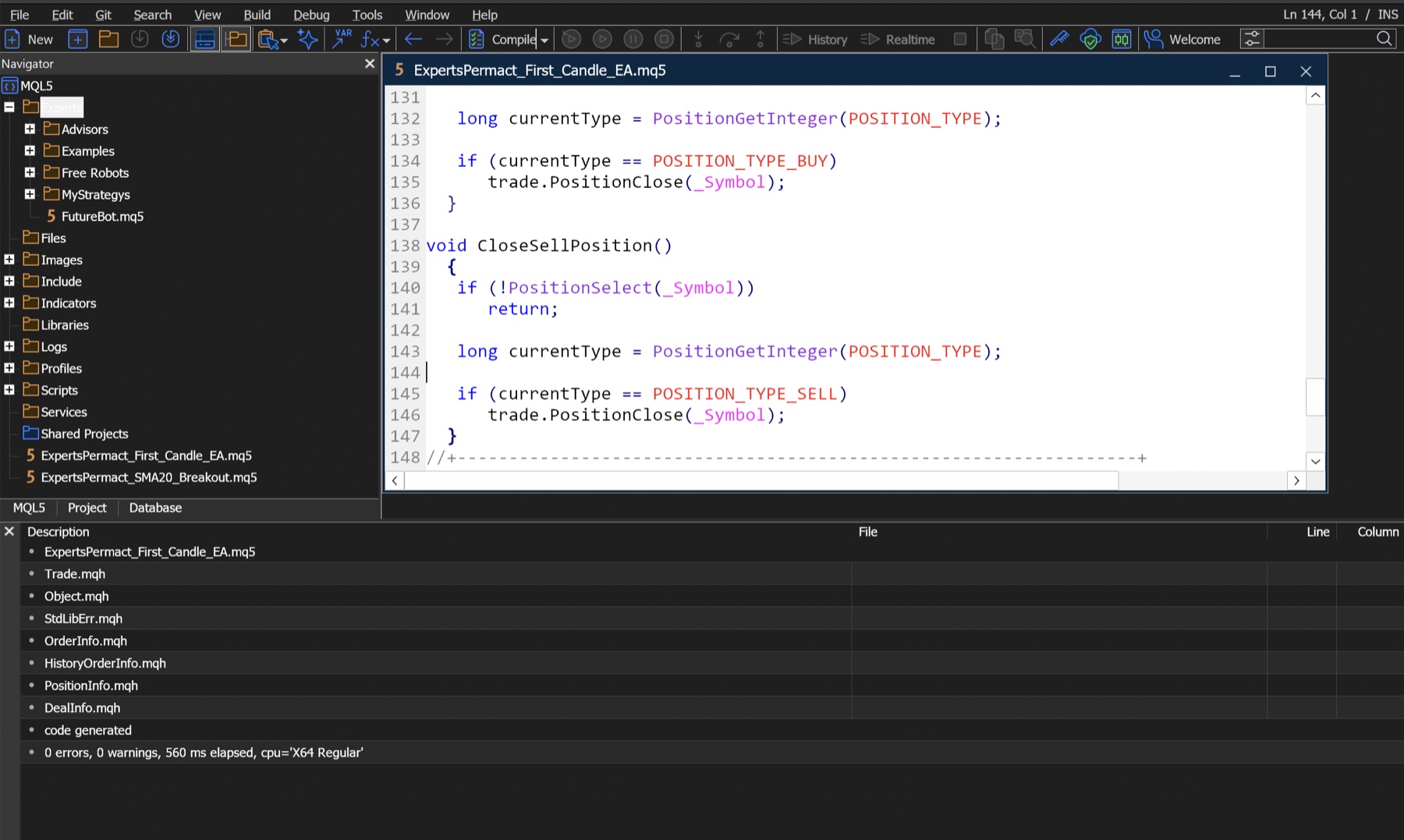
MetaEditor compiles the editable .mq5 source into an .ex5 program that MT5 can run. If compilation fails, use the first error rather than changing several things at once.
| Error pattern | First check |
|---|---|
Trade/Trade.mqh not found or related include error | Confirm the include line is exactly #include <Trade/Trade.mqh> and the standard library is installed |
| Unexpected token, brace, or end of program | Replace the entire file from the download; a line may have been omitted while copying |
| Semicolon expected | Open the first reported line and compare it with the source above |
| Compile succeeds but EA is absent in MT5 | Confirm the file is under MQL5/Experts, then refresh Navigator |
The official MT5 help for trading robots and indicators opens in a new tab explains how compiled programs appear in Navigator and are attached to charts.
Find the compiled EA in Navigator
Return to MT5 and open Navigator → Expert Advisors. If Permact_First_Candle_EA is not visible, right-click Expert Advisors and choose Refresh. If it remains absent, return to MetaEditor and use the file's context menu to verify its data-folder location.
Do not copy an .ex5 file from an unknown source merely because it appears in Navigator. The advantage of this exercise is that you possess and can inspect the exact .mq5 source.
Attach it safely and inspect the inputs
Keep the toolbar's Algo Trading control disabled while you attach and inspect the EA.
- Confirm the Navigator account is the intended demo account.
- Open a clean chart for the exact symbol you recorded earlier.
- Select a timeframe.
H1is practical for observing a new-bar example without excessive event frequency. - Drag
Permact_First_Candle_EAfrom Navigator onto the chart. - In Common, review the EA's algorithmic-trading permission.
- In Inputs, compare every value with the symbol specification.
- Click OK only after confirming the chart, account, and inputs.
| Input | Meaning | Validation step |
|---|---|---|
Lots | Requested trade volume | Must meet the symbol's minimum, maximum, and step; 0.01 is only a placeholder |
StopLossPoints | Requested stop-loss distance in symbol points | Convert with the symbol's _Point; do not read it automatically as pips |
TakeProfitPoints | Requested take-profit distance in symbol points | Check the resulting price distance against the current quote and specification |
MinStopBufferPoints | Extra points added beyond the advertised initial stops level | A troubleshooting aid, not a guarantee against rejections |
MagicNumber | Identifier assigned to new trade requests | Close helpers skip a selected position when its magic number differs |
Enable Algo Trading intentionally
MT5 can require permission at more than one level:
| Control | Scope | Symptom when disabled |
|---|---|---|
| Toolbar Algo Trading | Platform-wide | EAs may calculate but trade requests are blocked |
| EA Common settings | This attached EA | This EA cannot trade even if the toolbar control is enabled |
| Tools → Options → Expert Advisors | Platform policy | Global settings can block algorithmic execution |
| Account/profile change protections | Session safety | Trading may be disabled after switching account or profile |

After verifying all four, enable Algo Trading for this controlled demo run. The EA evaluates only when it observes a new bar, so an immediate order is not a success requirement. Permission to trade also does not mean the EA's logic has been approved or validated.
Use Experts and Journal as your evidence
Open the Toolbox at the bottom of MT5 and watch both Experts and Journal. The first useful evidence is the initialization message:
Permact first candle EA started
Common messages should lead to a specific check:
| Log message or symptom | Likely meaning | Next action |
|---|---|---|
| EA start message is absent | EA did not initialize or is attached elsewhere | Check chart label, Navigator, and Experts log around attachment time |
auto trading disabled by client | One or more permission layers are off | Recheck toolbar, EA Common settings, and platform options—on demo only |
invalid stops | Requested protective prices violate current symbol/server rules | Record bid/ask and symbol stop level, then follow the invalid-stops diagnostic guide |
not enough money | Requested volume exceeds available demo margin | Verify symbol contract size and reduce the demo volume to a valid step |
market closed | The symbol is outside its trading session | Read the symbol's session schedule; do not repeatedly retry |
| No order and no error before a new bar | The EA has not reached its evaluation boundary | Wait for a new bar or use Strategy Tester for controlled replay |
Record the timestamp, symbol, timeframe, inputs, bid/ask, and complete return-code description when a request fails. “It did not trade” is not enough information to reproduce a defect.
Stop and clean up the exercise
When you have observed initialization and at least one decision boundary:
- Disable Algo Trading.
- Save the Experts and Journal entries you need.
- Remove the EA from the chart.
- Review and close any remaining demo position deliberately; disabling an EA does not automatically flatten the account.
- Save the source version, input values, terminal build, account mode, symbol specification, and observation period together.
Do not move this EA to a live chart. Its incomplete ownership and trade-reconciliation safeguards are intentional teaching constraints, not production-ready design choices.
Completion checklist
The exercise is complete when you can check every item below:
- [ ] The exact
.mq5source is saved inMQL5/Experts. - [ ] MetaEditor reports
0 errors, 0 warnings. - [ ] The EA appears in MT5 Navigator.
- [ ] You attached it to the intended demo chart with Algo Trading initially disabled.
- [ ] You validated volume and point-based inputs against the symbol specification.
- [ ] Experts contains the initialization message.
- [ ] You can explain the account-mode, magic-number, and position-ownership limitations.
- [ ] You disabled the EA and reconciled any remaining demo position after the exercise.
Profit, win rate, and account balance are deliberately absent from this checklist. They do not validate the installation or the code path.
Up next
Next, run this same source through the MT5 Strategy Tester backtesting workflow. You will lock the symbol, timeframe, date range, model, deposit, leverage, and inputs; inspect Visual mode and logs; and save a test package that someone else can reproduce.